System Management Software for Small Business: A Practical Guide
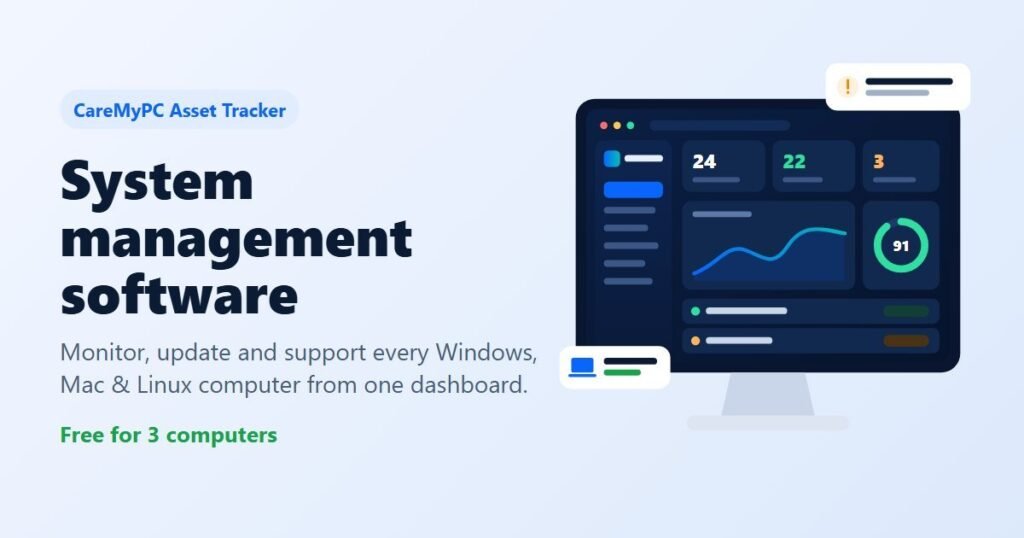
Most small offices run on 5 to 50 computers that nobody really looks after until something breaks. A disk fails and a year of files go with it. One PC never got its updates. Someone installed a cracked tool from a download site. System management software exists to stop these surprises: it puts every office computer on one screen so you can see problems early and fix them remotely.
This guide explains what system management software does, what to look for, and how to set it up for a small business without a full-time IT team.
In this guide
What is system management software?
System management software (also called endpoint management or remote monitoring and management, RMM) is a small agent installed on each computer plus a web dashboard. The agent reports hardware, software, disk health and update status, and it carries out actions you send from the dashboard, such as installing an app or restarting a PC.
The key difference from remote desktop tools: you do not have to connect to each computer one by one. You see all of them at once and act on many at once.
Why small offices need it
- Disks fail without warning to the user. Drives usually show warning signs (SMART errors, reallocated sectors) weeks before they die. Software that reads these values can alert you while the data is still recoverable.
- You can’t protect what you can’t list. An up-to-date inventory of every PC, its serial number, RAM, storage and installed software helps with audits, warranties and upgrades.
- Updates get skipped. Missing Windows updates are one of the most common ways malware gets in.
- Staff install whatever they find. Unknown software is a security and licensing risk.
- Visiting each desk wastes time. Installing one program on 20 PCs by hand can take a whole day.
Features that matter
1. Hardware and software inventory
A good tool lists every computer automatically: model, CPU, RAM, disks, operating system, and all installed applications, and keeps the list current when software is added or removed.
2. Disk health alerts
Look for alerts based on the drive’s own health data, not just free space. Early warning is the difference between swapping a drive and paying for data recovery.
3. Remote software install and uninstall
Push the same app to many PCs at once, and remove unwanted programs without visiting the desk.
4. Update status
See which computers are behind on updates so nothing is left unpatched.
5. Remote actions
Restart, shut down or run maintenance on one PC or a whole group from the browser.
6. Windows, Mac and Linux support
Most offices are mixed. One dashboard for all of them saves juggling three tools.
Security controls: blocking risky files
For many businesses the biggest risk is a staff member running a file they shouldn’t: a fake invoice that is really an .exe, or a script. Modern system management tools let the administrator block chosen file types and command-line tools such as PowerShell and Command Prompt for regular users, while the management agent itself keeps working. Start with a short block list, test it on one PC, then roll it out.
How to set it up in 15 minutes
- Create an account on the management dashboard.
- Download the agent for each operating system you use.
- Install it on one test PC and confirm it appears on the dashboard.
- Roll out to the rest of the office, then set alerts and policies.
How to choose the right tool
- Price per computer: small offices should not pay enterprise prices. A free tier for a few PCs lets you test properly.
- Light agent: it should not slow down the computers it watches.
- Clear alerts: fewer, meaningful alerts beat a flood of noise.
- Local support: when something goes wrong, you want a person who answers.
CareMyPC Asset Tracker
We built CareMyPC Asset Tracker for exactly this kind of office. It covers inventory, disk health alerts, remote software install, update status, policies including file-type blocking, and remote actions for Windows, Mac and Linux. It is free for up to 3 computers, and paid plans are priced per computer per month. See the current plans.
FAQ
Is system management software the same as antivirus?
No. Antivirus detects malicious files. System management software shows the state of every computer and lets you fix problems remotely. Most offices use both.
Will the agent slow my computers down?
A well-built agent reports a few times an hour and uses very little CPU or memory. Test on one PC first.
Do I need an IT person to use it?
No. The dashboard is designed so an office manager can read alerts and run common actions. For bigger jobs, a managed plan gives you a technician.
Can I manage computers in different locations?
Yes. The agent connects over the internet, so PCs at home, in branches or on the road all report to the same dashboard.
 100%