How to Recover Deleted Files in Windows 10 & 11 (Even After Emptying the Recycle Bin)
Deleted an important file, emptied the Recycle Bin, or formatted the wrong drive? Don’t panic, and stop using that drive right now. In most cases the file is still physically on the disk. Windows has only marked its space as free, and you can get it back until new data overwrites it.
This guide goes from the quickest checks to a full recovery scan, for Windows 10 and Windows 11.
In this guide
1. The first thing to do: stop writing to the drive
Every new file you save, app you install or browser cache you build up can land on the exact spot where your deleted file sits. So:
- Don’t save, download or install anything on the drive the file was on.
- Never install a recovery tool on the same drive you want to recover from. Use another drive or a USB stick if you can.
- When you recover files, save them to a different drive.
2. Quick checks: Recycle Bin, backups, OneDrive
- Recycle Bin: open it, sort by Date deleted, right-click the file → Restore. Files deleted with Shift + Delete, from the command line, or from USB drives skip the Recycle Bin.
- Previous versions: right-click the folder that held the file → Properties → Previous Versions. This only works if File History or System Protection was turned on.
- File History: Control Panel → File History → Restore personal files.
- OneDrive: if the folder was synced, open onedrive.com → Recycle bin. OneDrive keeps deleted files for 30 days on personal accounts.
Nothing there? The next step is a recovery scan.
3. Recover files with a recovery tool
A recovery tool reads the disk directly, finds file records that Windows marked as deleted, and rebuilds the files. Here’s the process with CareMyPC Data Recovery. It opens the source drive read-only and won’t let you save recovered files back to the drive you’re scanning.
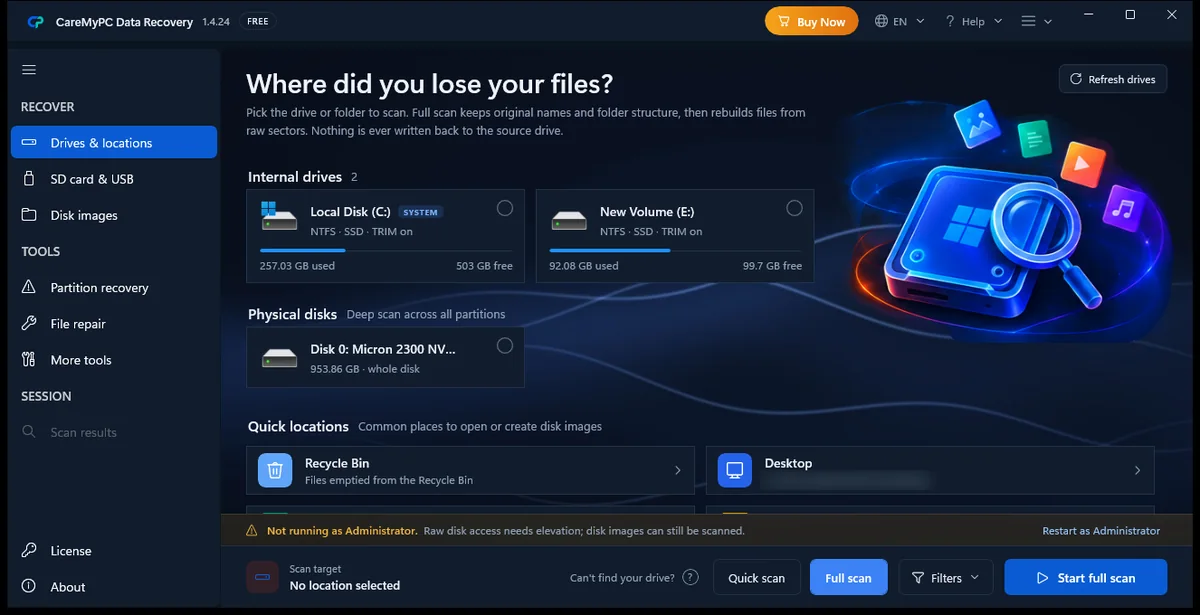
- Pick where the files were. Choose the drive (for example C: or a USB stick), or a quick location such as Desktop or Recycle Bin.
- Choose the scan type. Quick scan finds recently deleted files with their original names and folders. Full scan also rebuilds files from raw sectors, which is useful after formatting or when the quick scan finds nothing.
- Approve Administrator access when asked. Windows only lets admin apps read a disk directly.
- Preview the results. Filter by type (photos, documents, videos) or search by name. Previewing a file is the best way to check it is intact.
- Recover to another drive. Pick a destination on a different disk or a USB drive.
Tip: the sooner you scan, the better your chances. Days of normal use on the same drive lower them every hour.
4. USB drives and SD cards
If Windows says “You need to format the disk before you can use it”, choose Cancel, not Format. The drive’s file system is damaged, but the files are usually still there. In Data Recovery, open SD card & USB, pick the device and run a full scan. If the drive shows as RAW or has no letter, try Partition recovery.
5. A note about SSDs and TRIM
On SSDs with TRIM enabled (the Windows default), the drive may erase deleted blocks soon after a file is deleted, often within minutes. That makes recovery from internal SSDs much less likely than from hard drives, USB sticks or SD cards. Check the Recycle Bin, OneDrive and backups first. And going forward, turn on File History or OneDrive backup. It’s the only guaranteed protection.
Files too important to risk?
If the drive clicks, isn’t detected, or the data is business-critical, stop and ask a professional before trying more scans. Our technicians can help remotely. See online computer support or contact us.
Common questions
Can I recover files after emptying the Recycle Bin?
Often yes, as long as the space hasn’t been overwritten. Run a recovery scan as soon as possible and don’t save new files to that drive.
Can I recover files after formatting a drive?
After a quick format, usually yes, using a full scan. A full format on Windows 10/11 writes zeros over the drive, and those files can’t be recovered.
Why do recovered files have names like “file0001.jpg”?
Files rebuilt from raw sectors no longer have their file system record, so the original name and folder are gone. The contents are still intact. Use the preview to find what you need.
Is it safe to scan my C: drive?
Yes. Scanning only reads the disk. Just save the recovered files to a different drive.
 100%