Why Is My PC So Slow? 10 Fixes for Windows 10 & 11 That Actually Work
A PC that takes ages to start, freezes when you open a few tabs, or shows 100% disk in Task Manager is frustrating. The good news: most slowdowns come from a handful of fixable causes. Work through these checks in order. Each one tells you what to look for and how to fix it on Windows 10 and Windows 11.
In this guide
1. Find the cause in Task Manager
Press Ctrl + Shift + Esc and open the Processes tab. Click the CPU, Memory and Disk column headers to sort. If one app is constantly near the top, that’s your culprit. Close it, update it or uninstall it. If Disk sits at 100% while the PC is idle, the fixes in steps 3, 5 and 8 are the likely ones.
2. Too many startup apps
Every app that starts with Windows adds to boot time and uses memory all day. Open Task Manager → Startup apps and disable anything you don’t need the moment Windows starts: chat apps, updaters, game launchers. Leave your antivirus and drivers (audio, touchpad) enabled.
3. C: drive almost full
Windows needs free space for its page file, updates and temp files. With less than about 10–15% free, everything slows down. Clear space, or make C: bigger. Our guide how to increase C: drive space without losing data covers both.
4. Temporary and junk files
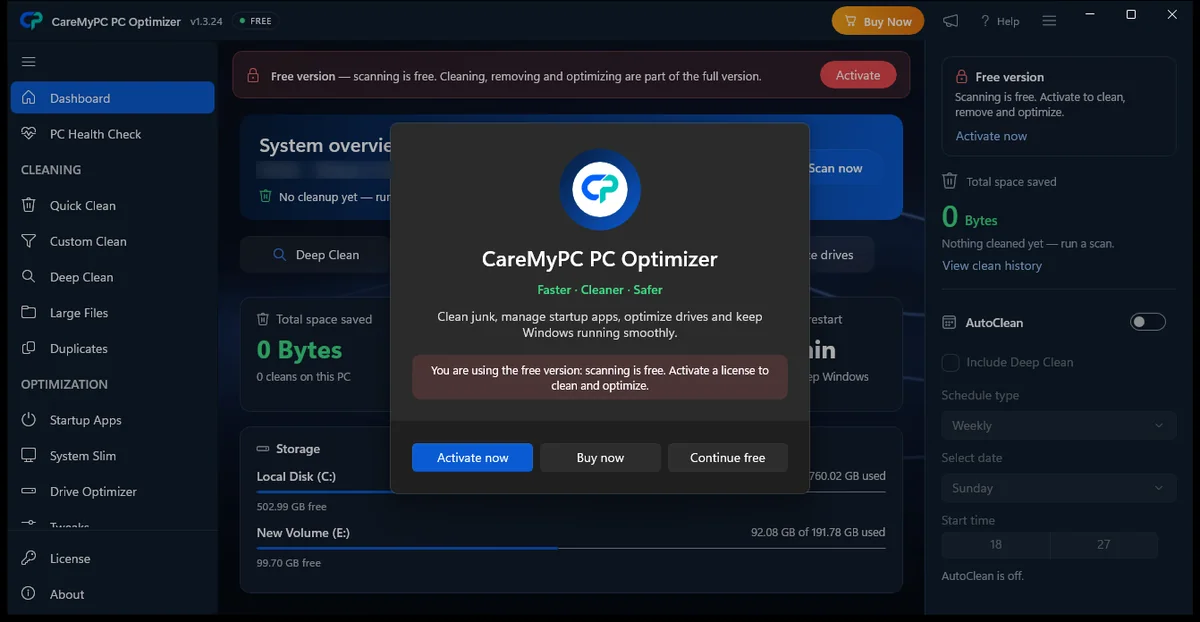
Browsers, Windows Update and apps leave behind gigabytes of cache and leftovers. Clean them with Settings → System → Storage → Temporary files, or run a full cleanup with CareMyPC PC Optimizer. It scans junk, large files, duplicates and startup apps in one place, and you choose what to remove.
5. Pending Windows updates and drivers
Half-installed updates can keep the disk busy for hours. Open Settings → Windows Update, install everything and restart, even if it doesn’t ask you to. Then check your graphics, chipset and storage drivers on the PC or laptop maker’s support site. Outdated storage drivers are a common cause of 100% disk.
6. Malware and unwanted programs
Crypto-miners, adware and fake “optimizer” toolbars run quietly in the background. Run a Full scan in Windows Security → Virus & threat protection, and uninstall programs you don’t remember installing from Settings → Apps. If pop-ups or browser redirects keep coming back, get help with virus and malware removal.
7. Power plan and background apps
On laptops, “Best power efficiency” deliberately slows the CPU. Go to Settings → System → Power & battery → Power mode and pick Balanced or Best performance when plugged in. Also turn off visual effects you don’t need: search “Adjust the appearance and performance of Windows” and choose Adjust for best performance.
8. Drive health and errors
A failing hard drive gets slow long before it dies. Open Command Prompt as administrator and run:
chkdsk C: /scanOn SSDs, open Optimize drives and make sure scheduled optimization (TRIM) is on. If an old PC still runs Windows from a spinning hard drive, moving to an SSD is the single biggest speed upgrade you can buy. A partition tool can clone the drive so you don’t need to reinstall Windows.
9. Corrupted system files
Damaged Windows files cause freezes, slow menus and odd errors. Open Terminal (Admin) and run these two commands, one after the other:
DISM /Online /Cleanup-Image /RestoreHealth
sfc /scannow
Restart when both finish.
10. When it’s the hardware
If Task Manager shows memory constantly above 85–90% with only a browser and a few apps open, the PC needs more RAM. 8 GB is the practical minimum for Windows 11 today; 16 GB is comfortable. Overheating also throttles performance. Clean the vents, and if a laptop fan runs loud all the time, have it serviced.
Still slow? Let a technician look
If you’ve tried these steps and the PC is still slow, a CareMyPC technician can diagnose it over a secure remote session. See remote computer repair or our support plans.
Common questions
Do PC cleaners really make a computer faster?
They help when the cause is junk files, a full drive or too many startup apps. They can’t fix failing hardware or too little RAM, and no tool should promise a fixed percentage speed-up.
Should I defragment my SSD?
No. Windows’ Optimize drives sends TRIM to SSDs instead of defragmenting them, which is what SSDs need. Only hard drives need defragmenting.
Will resetting Windows make it faster?
Often, yes, because it removes years of leftover software. Back up first and try the steps above before resetting.
 100%